How to Disable Structure Collision on your ARK Server
In ARK: Survival Evolved, building can sometimes feel restrictive when structures cannot be placed close together or in tight spaces.
Disabling structure collision gives you more freedom when building by allowing structures to be placed even when they overlap with terrain or nearby objects. This can be useful for both creative builds and more compact base designs.
This guide shows you two ways to enable that setting:
Method 1: New Menu
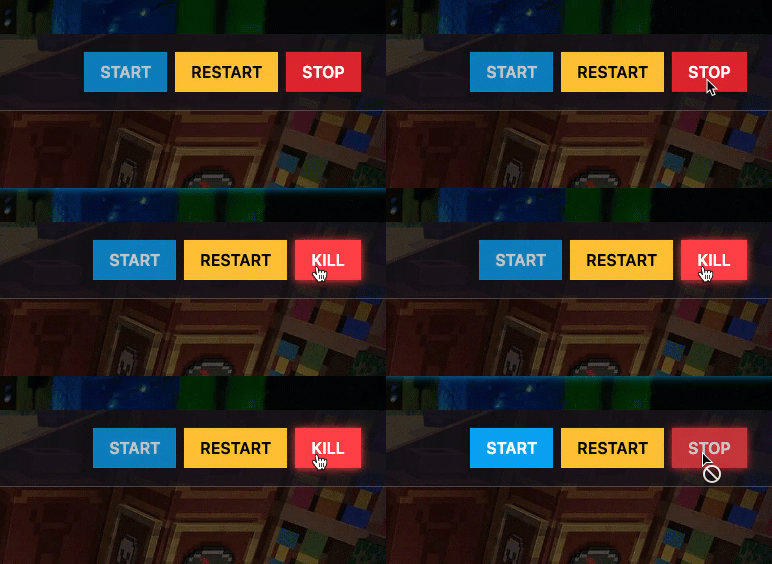
Step 1) Open your Console, select your server, and stop it using the STOP button.
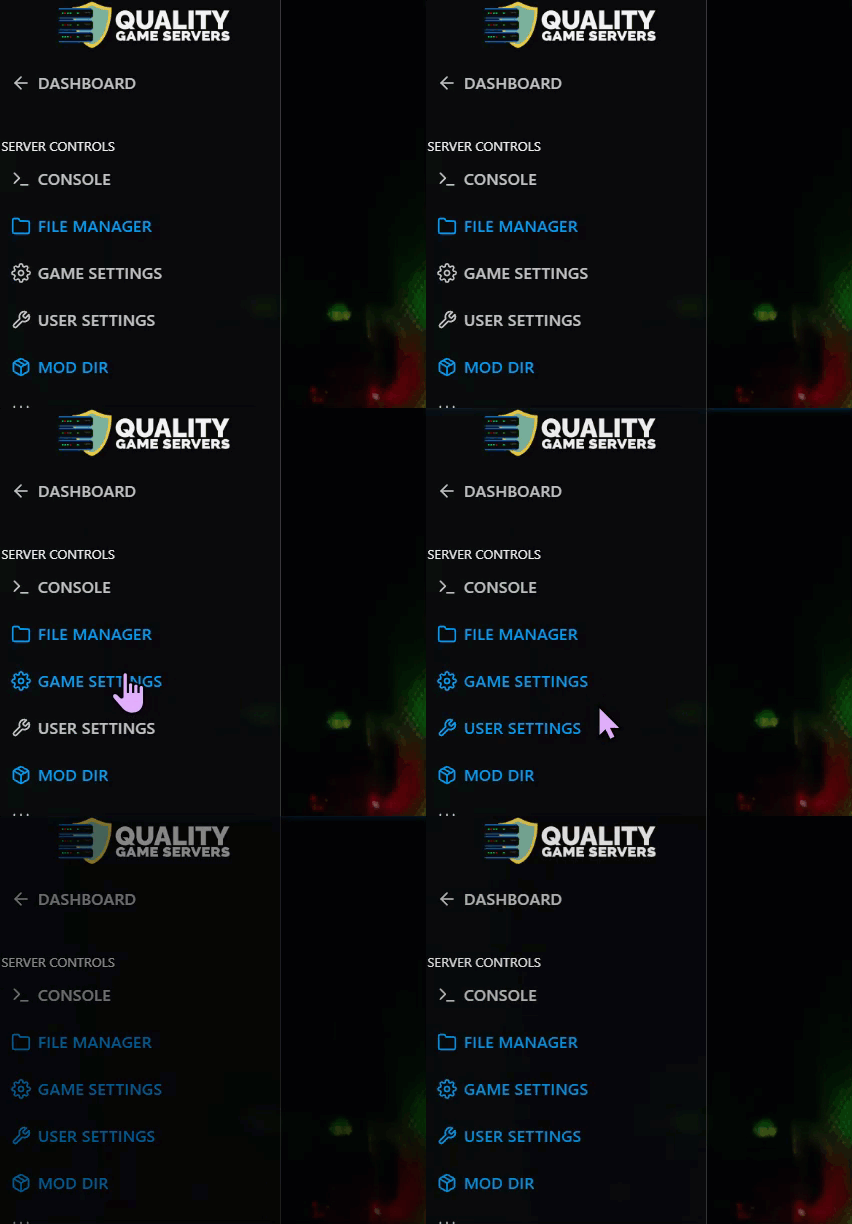
Step 2) Open Game Settings from the menu on the left.
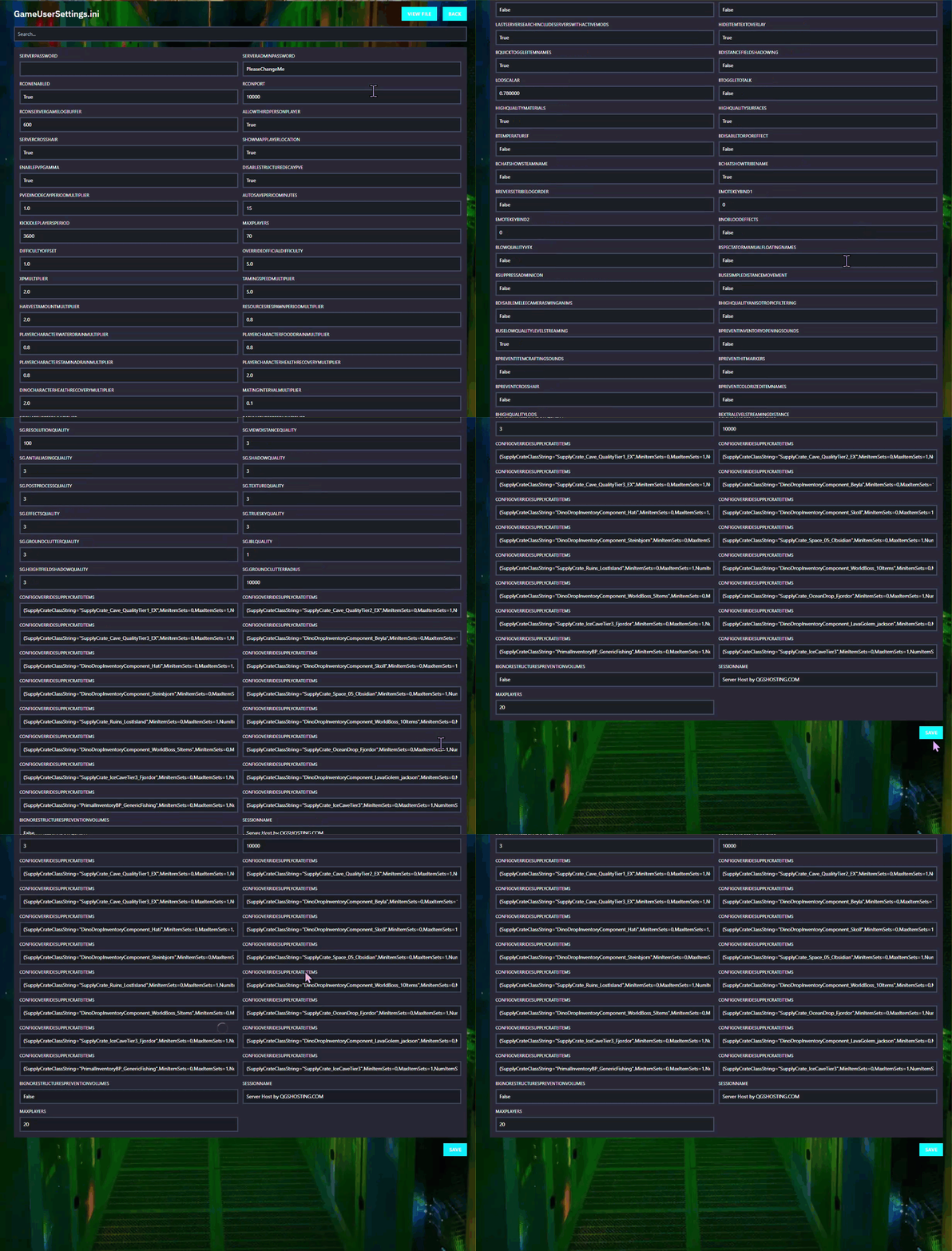
You will see the Game.ini settings page with built-in fields for many available options.

You can quickly locate the setting by pressing Ctrl + F and searching for:
bDisableStructurePlacementCollision

Step 3) After finding the field, set its value to:
True

Even if some older examples show
False, to disable structure collision the setting should be:
Step 4) Scroll to the bottom and click SAVE.
Step 5) Return to the Console and start your server again.

Method 2: File Manager
Step 1) Open your Console, select your server, and stop it using the STOP button.
Once the server is stopped, open FILE MANAGER from the left-side menu under SERVER CONTROLS.

Step 2) Go to:
ShooterGame > Saved > Config > LinuxServer
Then open the Game.ini file.

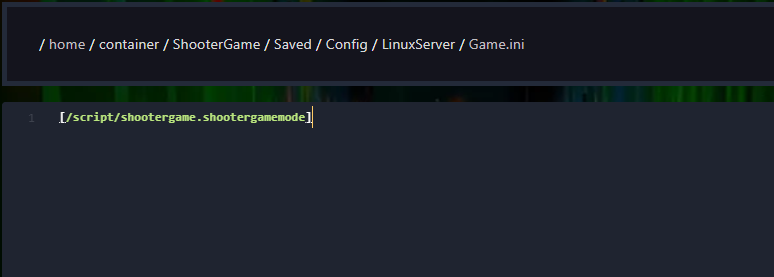
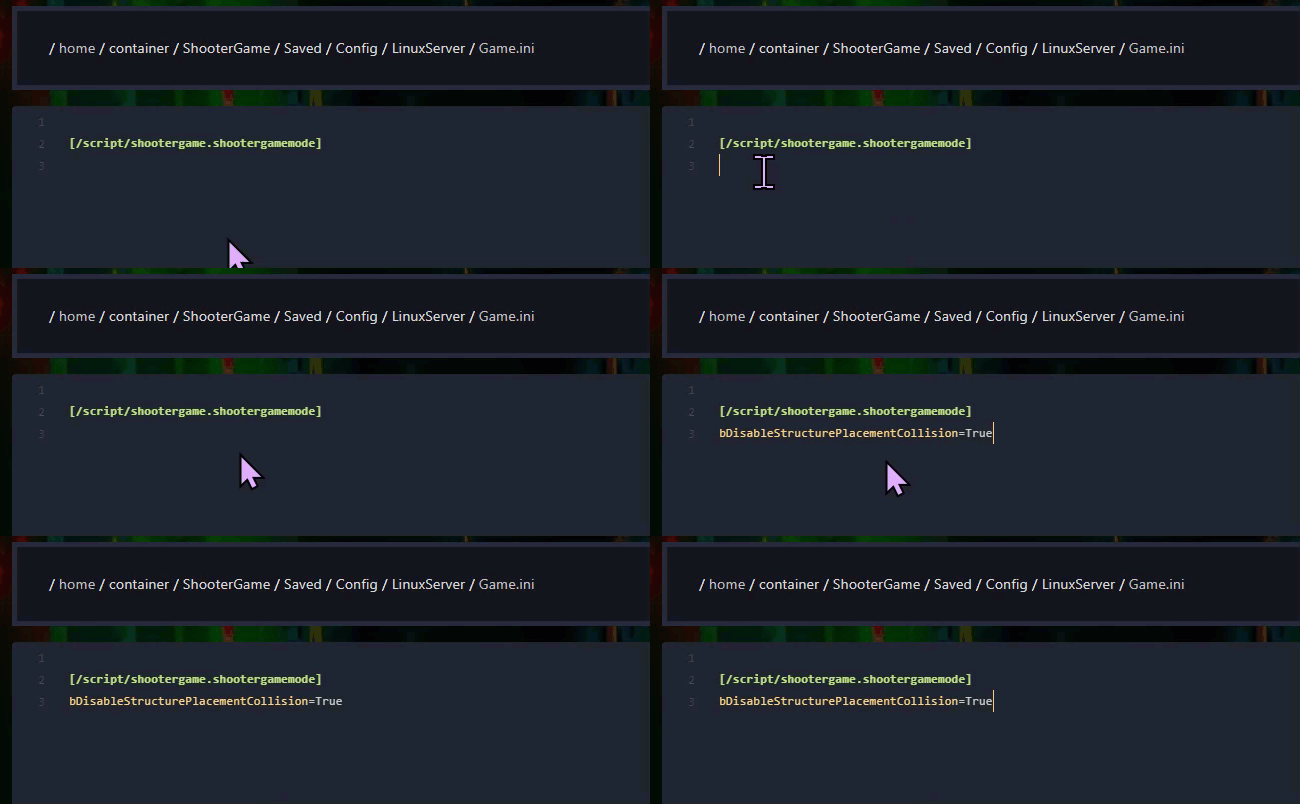
Step 3) If the file is empty, add this line at the top:
[/script/shootergame.shootergamemode]
Step 4) Under that line, add:
bDisableStructurePlacementCollision=True
Step 5) Click Save Content when you are done.

Step 6) Return to the Console and start your server again.
Your structure collision setting is now updated.