ARK Server Settings Customization
Customizing your ARK server lets you control how your world works and shape the experience for your players.
You can adjust settings such as:
- difficulty level
- taming and breeding rates
- harvesting and resource spawn rates
- player and dinosaur stats like health and stamina
- day and night cycle speed
- weather behavior
There are three ways to change your ARK server settings:
Edit GameUserSettings.ini
You can update GameUserSettings.ini in two ways:
Method 1: User Settings menu
Step 1) Open your Console, select your server, and stop it using the STOP button.

Step 2) In the left-side menu, open User Settings.

You will see a page with the available GameUserSettings.ini options. Most settings have ready-to-use input fields, which makes editing easier.
You can quickly find a setting by pressing Ctrl + F and searching for its name.
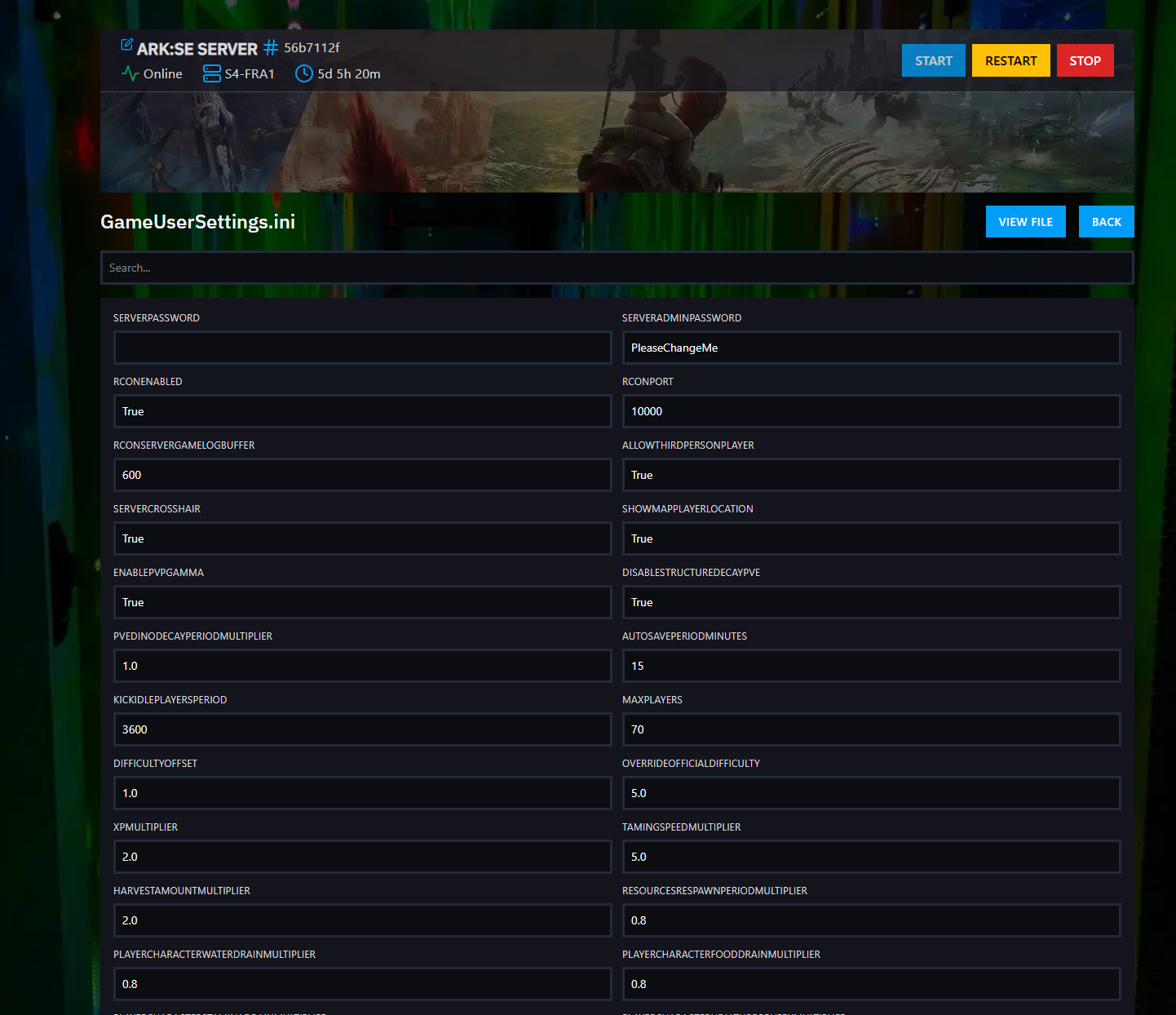
You can also click View File in the upper-right area if you prefer editing the raw file directly. If you choose that option, follow the steps in Method 2.
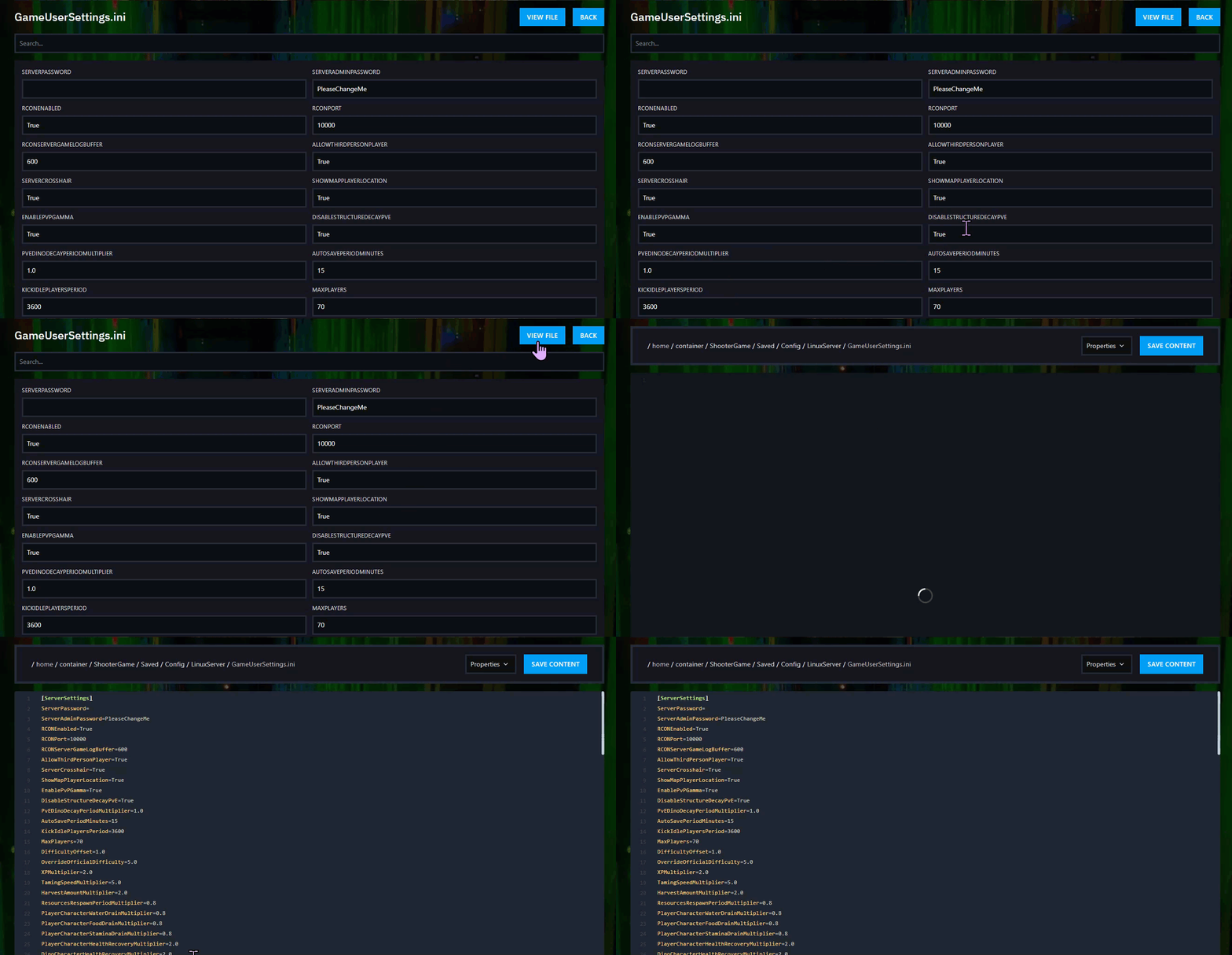
Step 3) Enter the value you want for the setting.

Step 4) Scroll to the bottom of the page and click SAVE.

Step 5) Return to the Console and start your server again.

Method 2: File Manager (User Settings)
Step 1) Open your Console, select your server, and stop it using the STOP button.
Once the server is stopped, open FILE MANAGER from the left-side menu under SERVER CONTROLS.

Step 2) Go to:
ShooterGame > Saved > Config > LinuxServer
Then open the GameUserSettings.ini file.

Step 3) In the editor, locate the [ServerSettings] section.
This is where existing server settings are stored, and where you can edit current values.
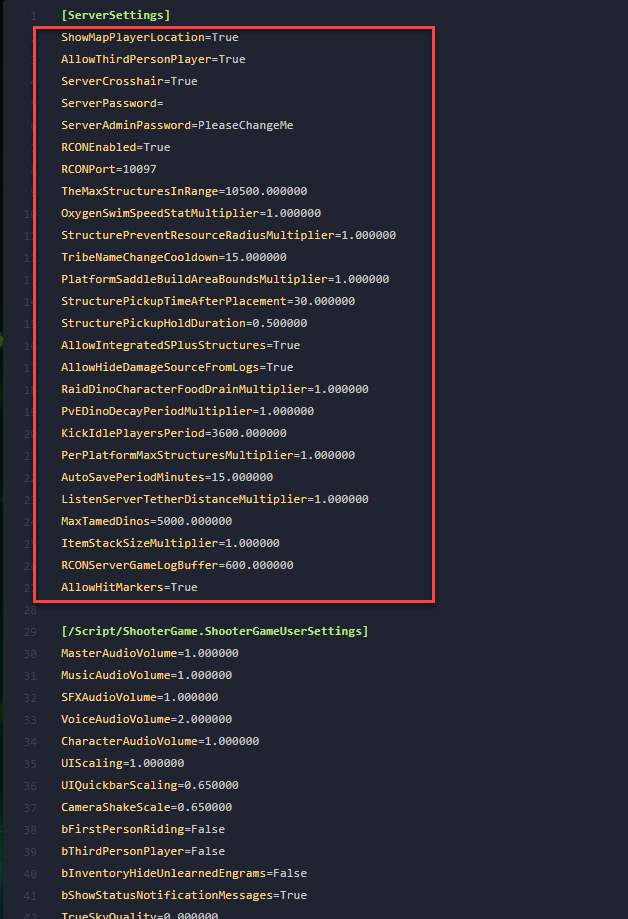
You can find more information about available
GameUserSettings.inisettings here.
Step 4) Add any new custom settings under [ServerSettings], each on a separate line.
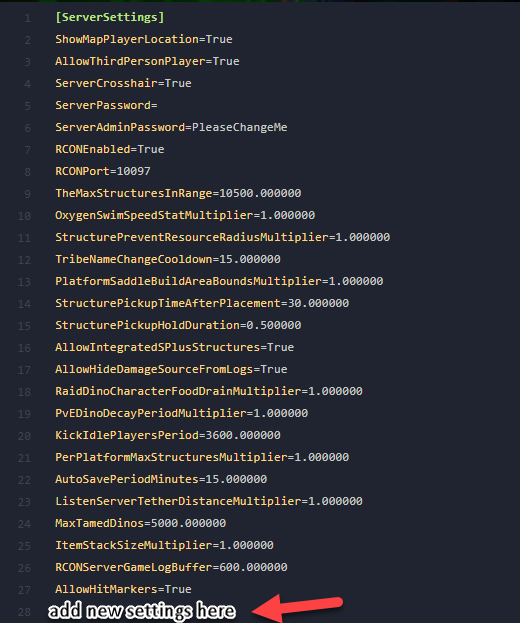
Step 5) Click Save Content when you are done.

Step 6) Return to the Console and start your server again.
Your new server settings are now applied.
Edit Game.ini
You can update Game.ini in two ways:
Method 1: Game Settings menu
Step 1) Open your Console, select your server, and stop it using the STOP button.
Step 2) In the left-side menu, open Game Settings.
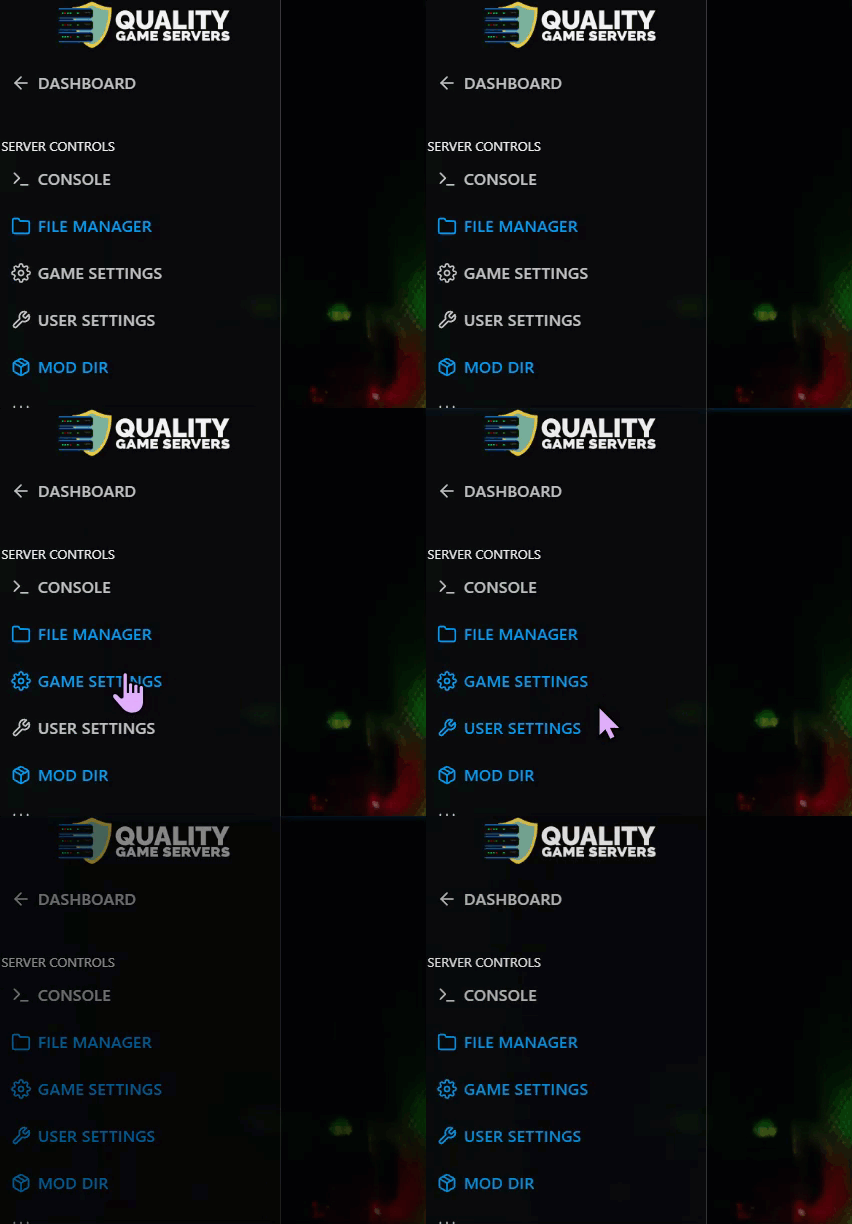
You will see a page with the available Game.ini options. Most settings have built-in input fields for easy editing.
You can quickly search for a setting by pressing Ctrl + F.

You can also click View File if you want to edit the raw file directly. If you use that option, follow the steps in Method 2.
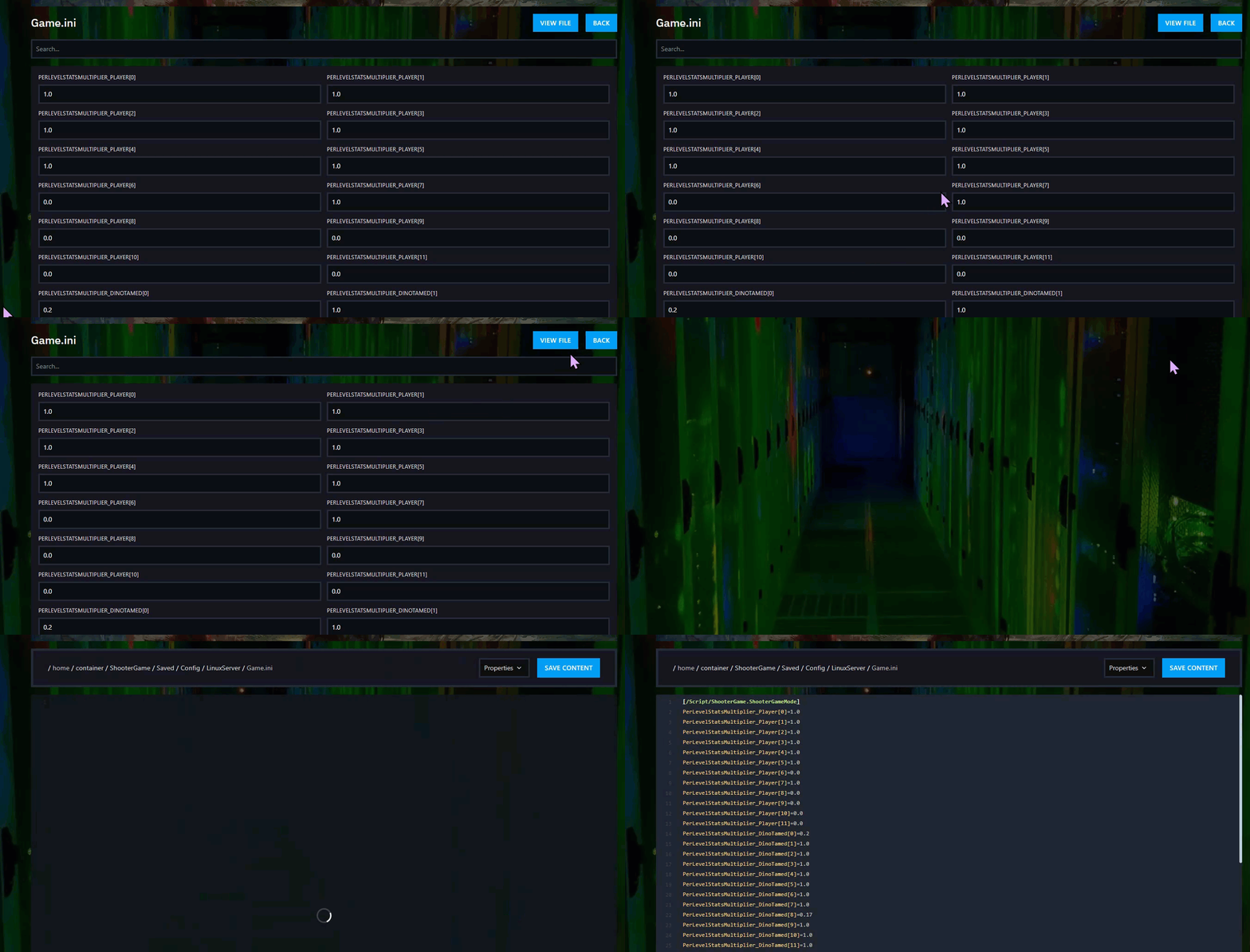
Step 3) Enter the value you want for the setting.
Step 4) Scroll to the bottom and click SAVE.
Step 5) Return to the Console and start your server again.
Method 2: File Manager (Game Settings)
Step 1) Open your Console, select your server, and stop it using the STOP button.
Once the server is stopped, open FILE MANAGER from the left-side menu under SERVER CONTROLS.
Step 2) Go to:
ShooterGame > Saved > Config > LinuxServer
Then open the Game.ini file.

Step 3) If the file is empty, add this line at the top:
[/script/shootergame.shootergamemode]
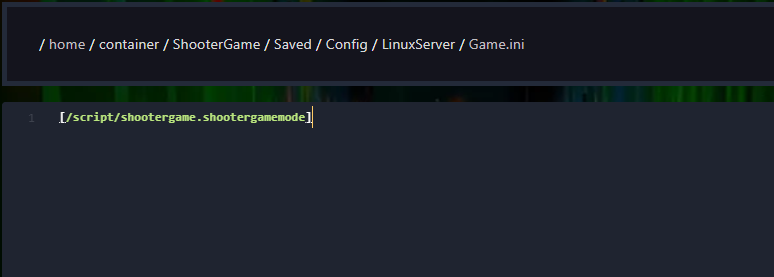
Then add your custom settings below that line.
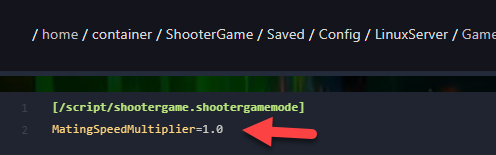
If the file already contains the [/script/shootergame.shootergamemode] section, simply edit the existing settings under it.
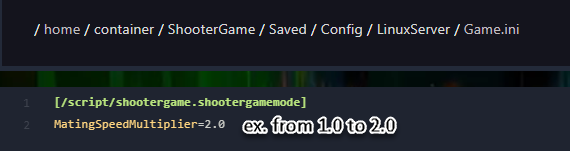
You can find more
Game.inisettings here.
Step 4) Click Save Content when you are done.
Step 5) Return to the Console and start your server again.
Your Game.ini changes are now active.
Use command line arguments
Some ARK settings can also be added through the command line.
Step 1) Open your Console, select your server, and stop it using the STOP button.

Step 2) Once the server is stopped, open SETTINGS.

Look for the ADDITIONAL ARGUMENTS field in the bottom-right section of the page.
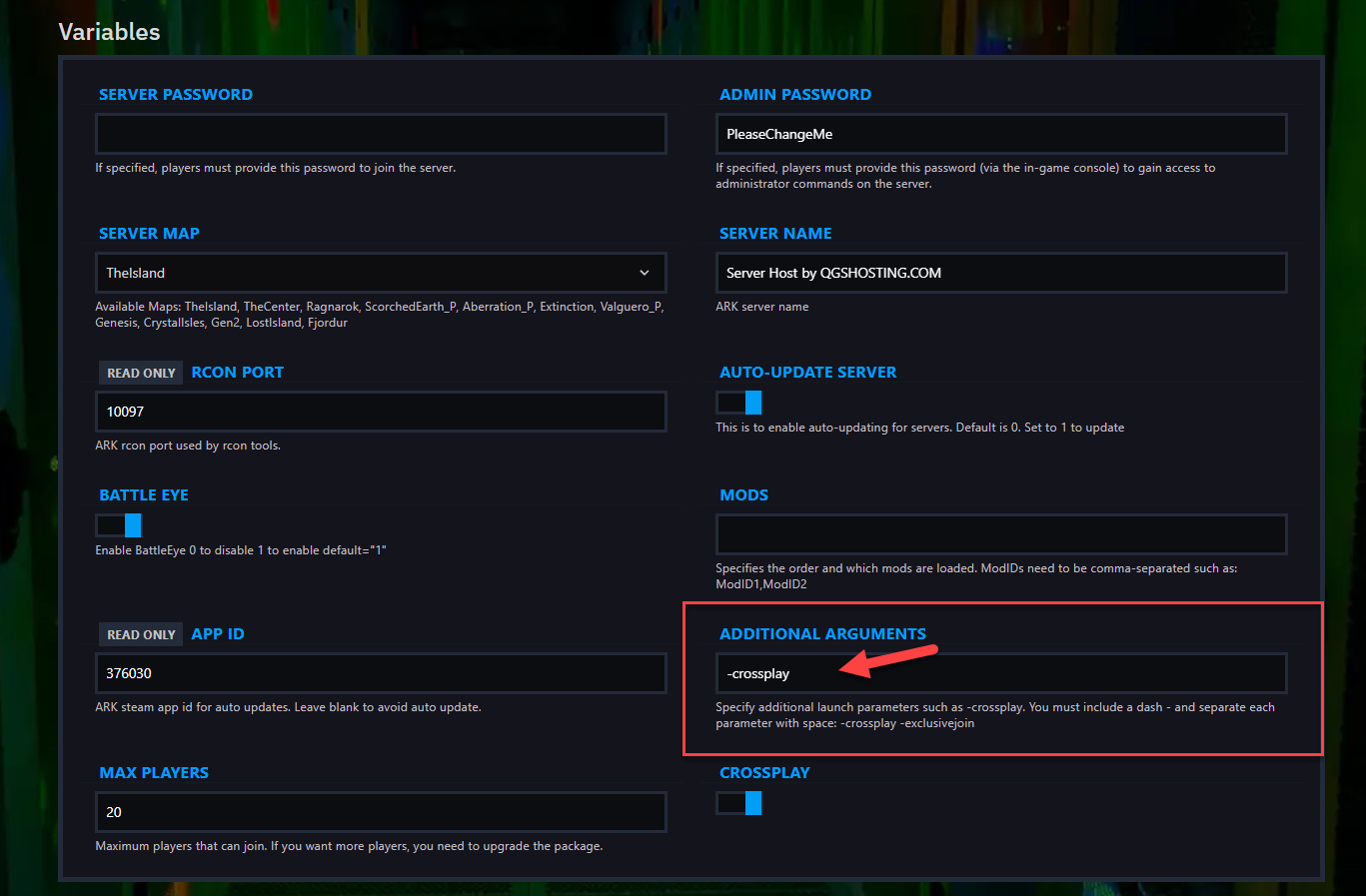
In this field, add settings that use command-line syntax.
Example:
-crossplay
You can find more command-line settings, syntax help, and examples here.
Step 3) Return to the Console and start your server again.
Your command-line settings are now applied.
Final notes
- Always stop the server before making changes.
- Save your edits before leaving the page.
- Start the server again after every change so the new settings can take effect.