How to Disable PvP and Switch to PvE on your ARK Server
Your ARK server can run in either PvP (Player vs Player) or PvE (Player vs Environment) mode.
In PvP, players can attack each other, raid bases, and kill or steal tamed dinosaurs. In PvE, players cannot damage each other, which creates a more relaxed and cooperative experience focused on building, taming, and exploration.
This guide shows you two ways to switch your server from PvP to PvE:
Method 1: New Menu
Step 1) Open your Console, select your server, and stop it using the STOP button.

Step 2) Open User Settings from the menu on the left.

On this page, click the View File button above the settings menu on the right side.

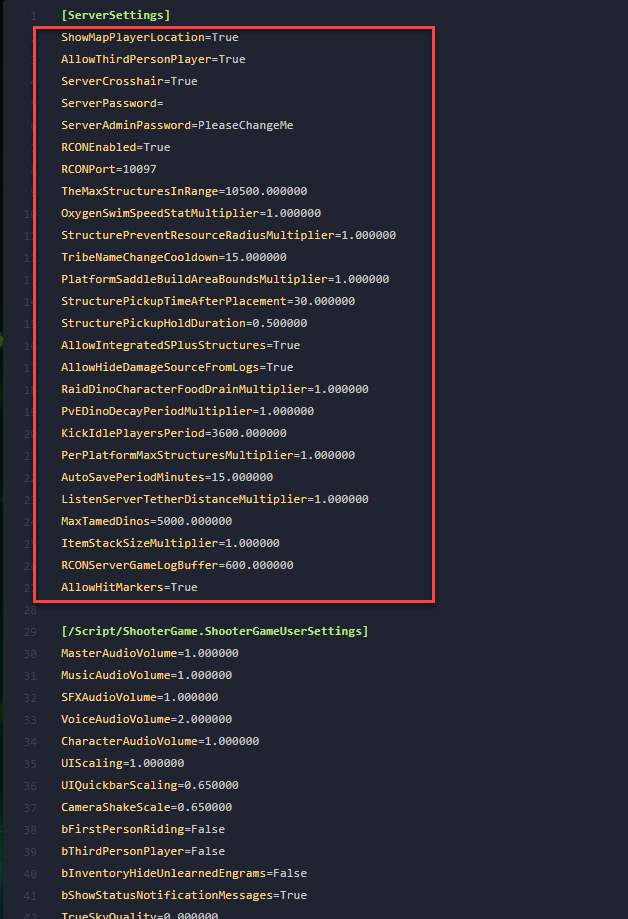
Step 3) In the text editor, find the [ServerSettings] section.
Under this section, add the following line on a new line:
ServerPVE=True
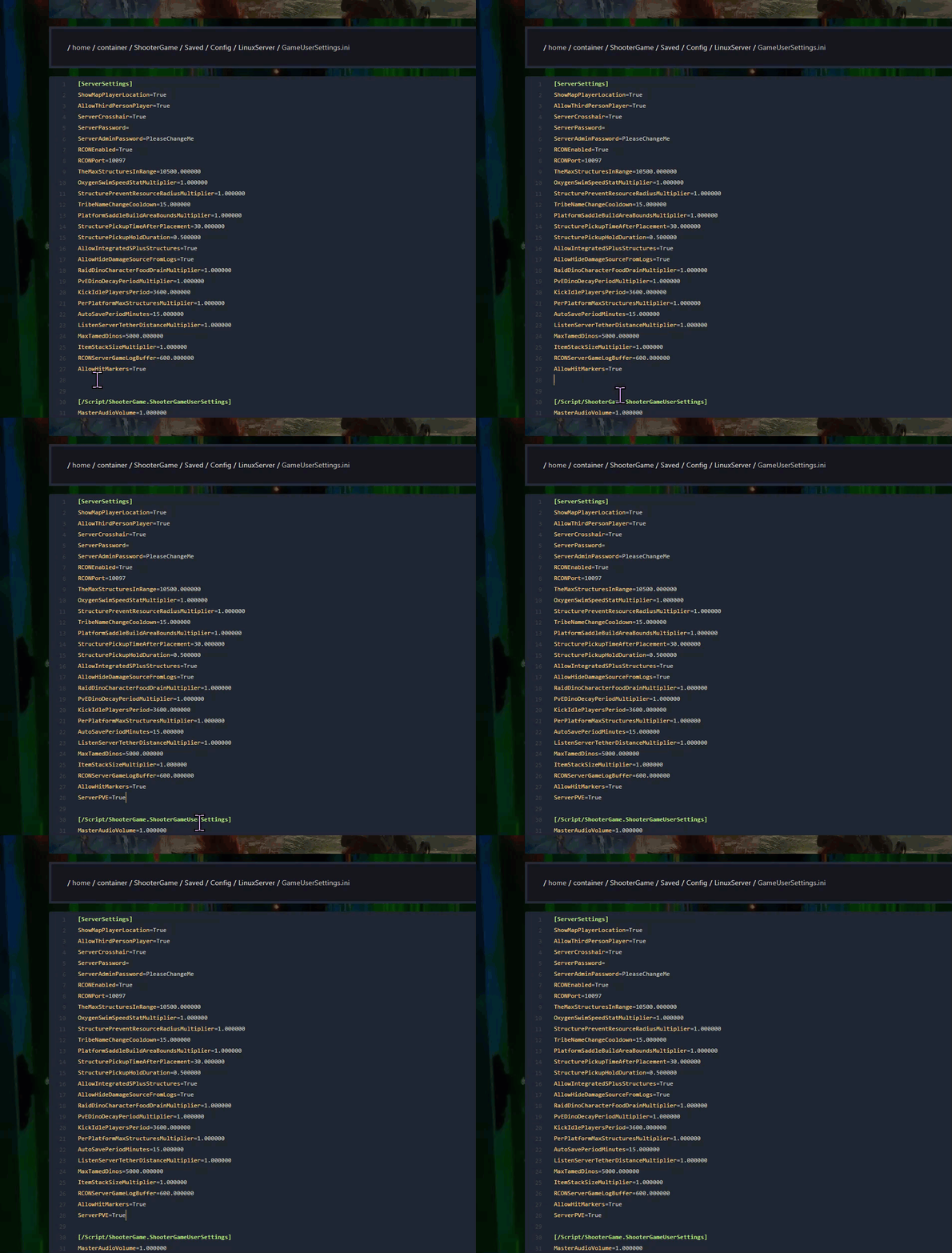
Step 4) Click Save Content.

Step 5) Open Game Settings from the menu on the left.

Click the View File button above the settings menu.
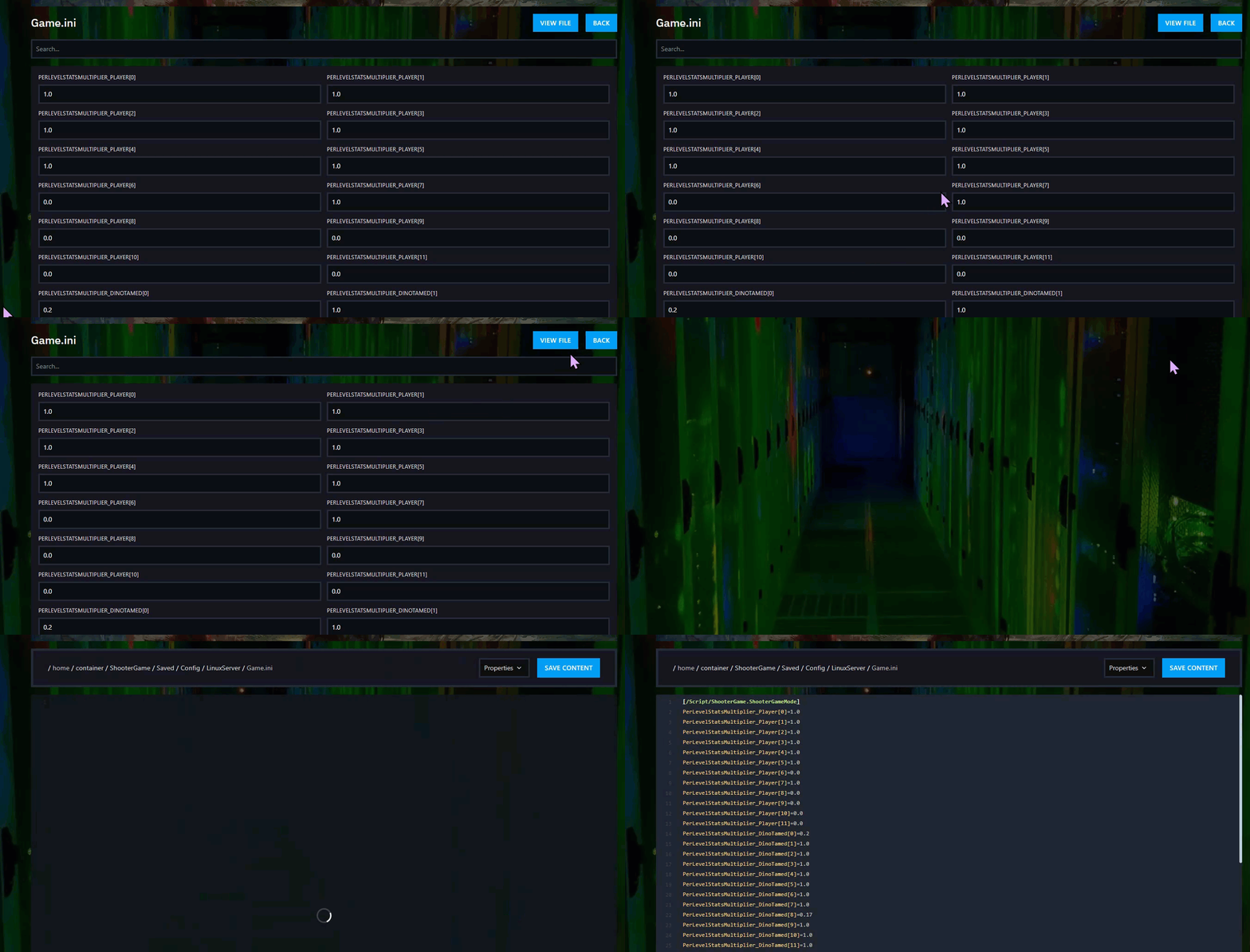
Step 6) Add the following line on a new line:
bAutoPvETimer=false

Step 7) Return to the Console and start your server again.

Method 2: File Manager
Step 1) Open your Console, select your server, and stop it using the STOP button.
Once the server is stopped, open FILE MANAGER from the left-side menu under SERVER CONTROLS.

Step 2) Go to:
ShooterGame > Saved > Config > LinuxServer
Open the GameUserSettings.ini file.

Step 3) In the editor, find the [ServerSettings] section.
Add this line on a new line under it:
ServerPVE=True
Then click Save Content.
Step 4) In the same folder, open the Game.ini file.

Step 5) If the file is empty, add this line first:
[/script/shootergame.shootergamemode]
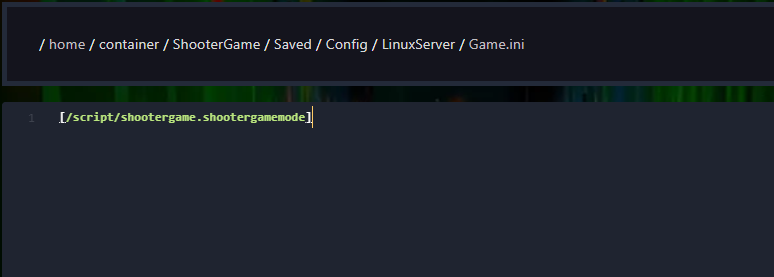
Step 6) Then add this line on a new line:
bAutoPvETimer=false
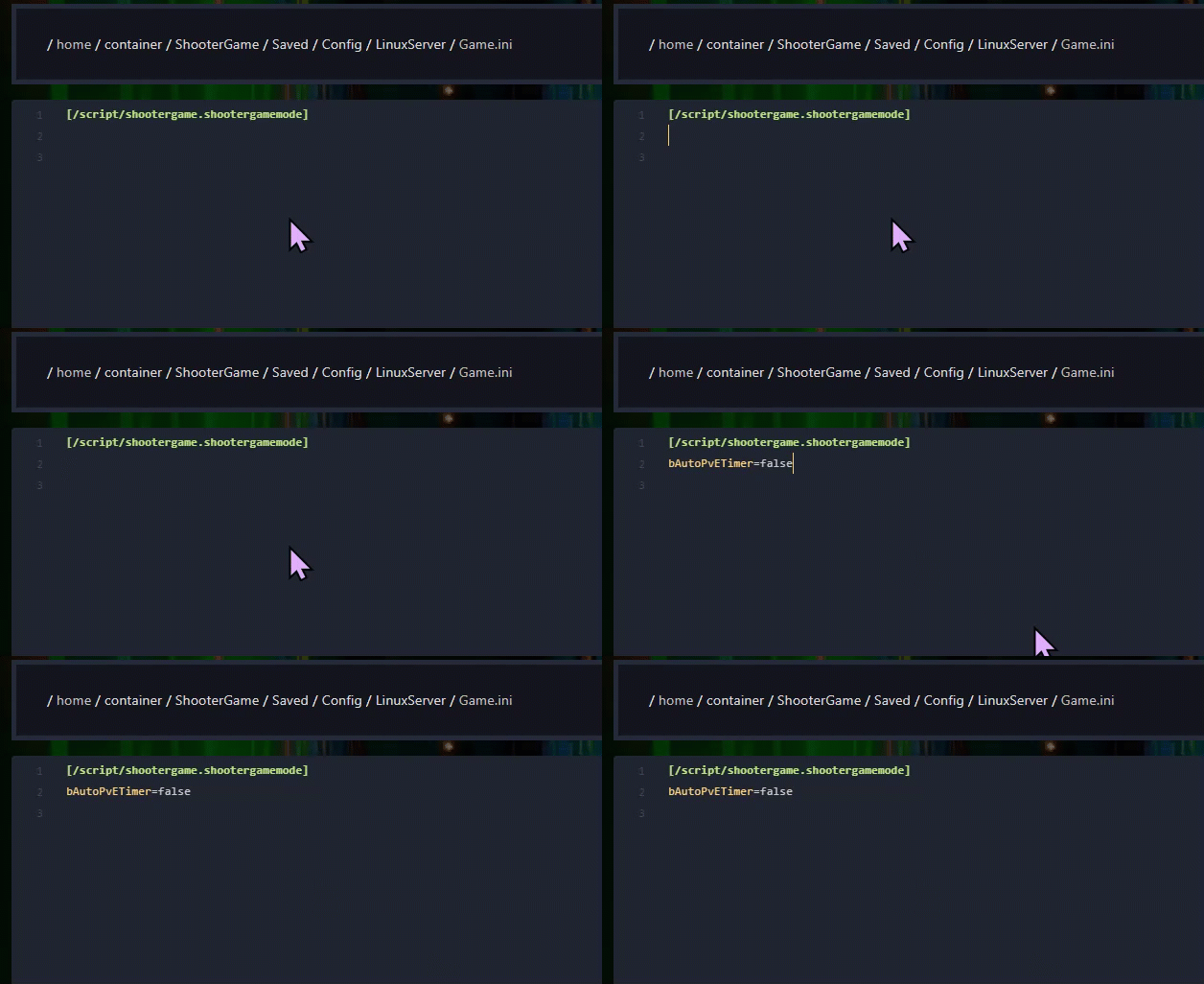
Click Save Content when you are done.
Step 7) Return to the Console and start your server again.
Your server is now set to PvE, and the change will also appear in the server list.