How to Download a Save from your ARK server to Single Player
Downloading your ARK server save and moving it to single player is useful if you want to continue playing offline, test changes safely, or keep a backup of your world after your server rental ends.
This can also help when you want to:
- test structures or changes offline
- troubleshoot bugs
- keep your progress locally
- reuse the world later on another server
You need an FTP client to transfer the save files manually.
See this guide: How to use File Manager and FTP Client
If you need your player profile file, you may also need your SteamID64.
See this guide: How to find Steam ID or Epic ID
Single-player settings may not fully match your server settings.
Back up any custom configurations before replacing files.
See also: ARK server settings customization
Step 1) Open your local single-player save folder
In Steam, right-click ARK: Survival Evolved and choose Browse local files.

Then open:
SavedArksLocal
Leave this folder open or minimize it for later.

Step 2) Stop your server
Open your console and stop the server.

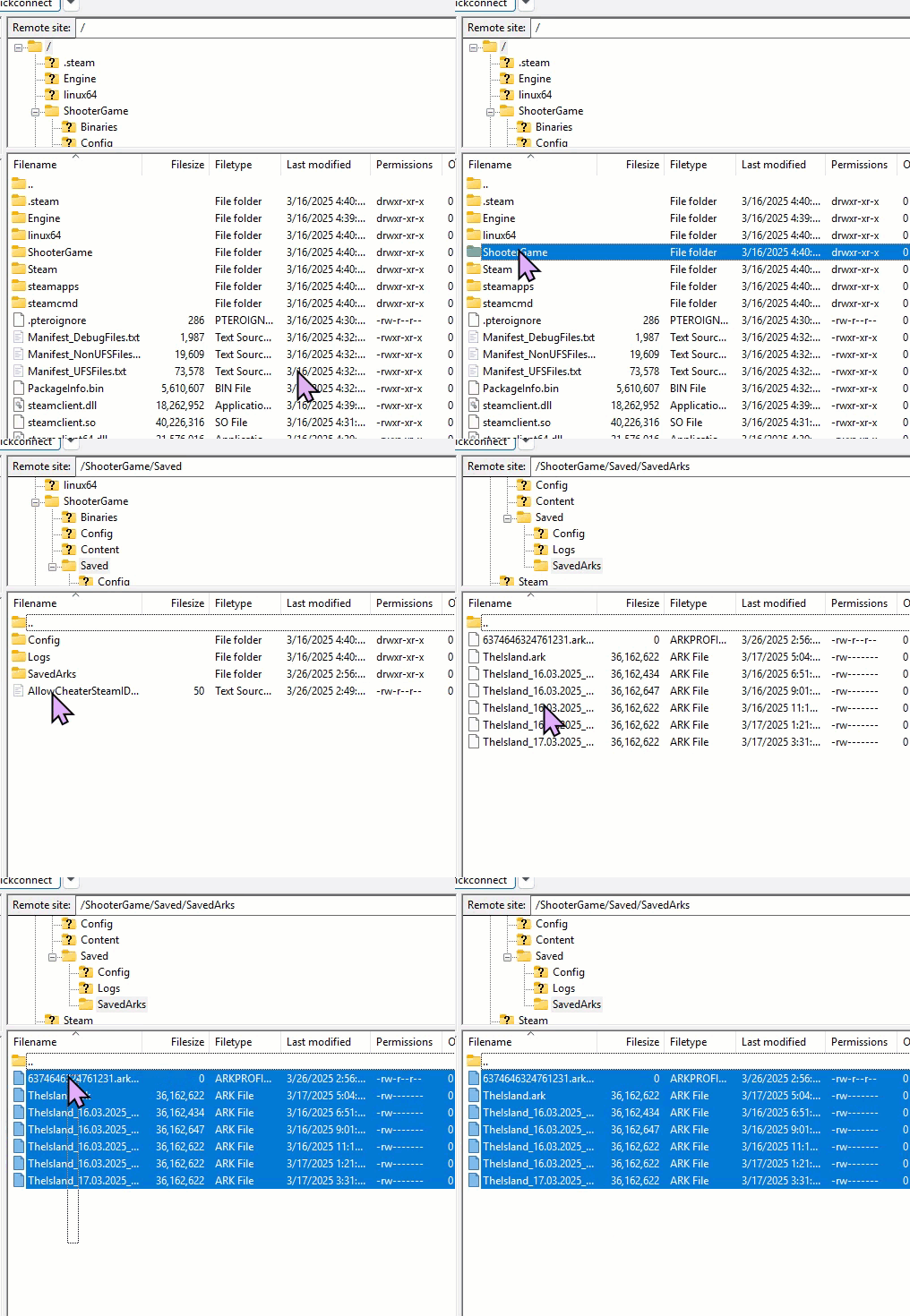
Step 3) Download the save files through FTP
Connect to your server using your FTP client.
Then locate the SavedArks directory on the server and drag the files into your local SavedArksLocal folder from Step 1.
Step 4) Rename your player profile file
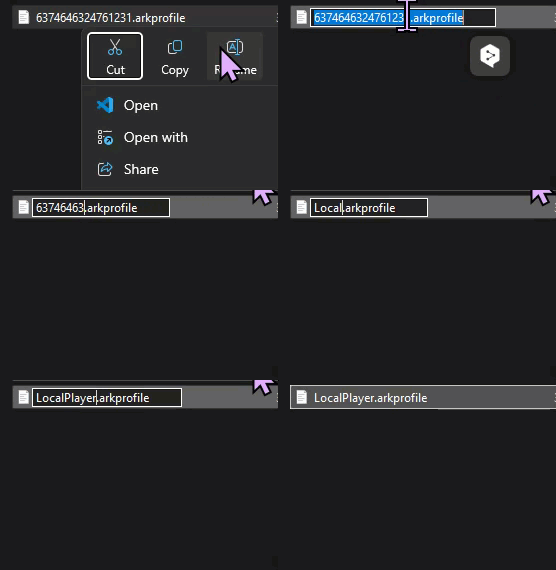
Find the file named:
[SteamID].arkprofile
Rename it to:
LocalPlayer.arkprofile
Step 5) Download your server config files
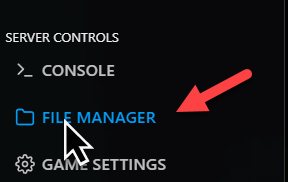
Go back to your console and open File Manager.
Navigate to:
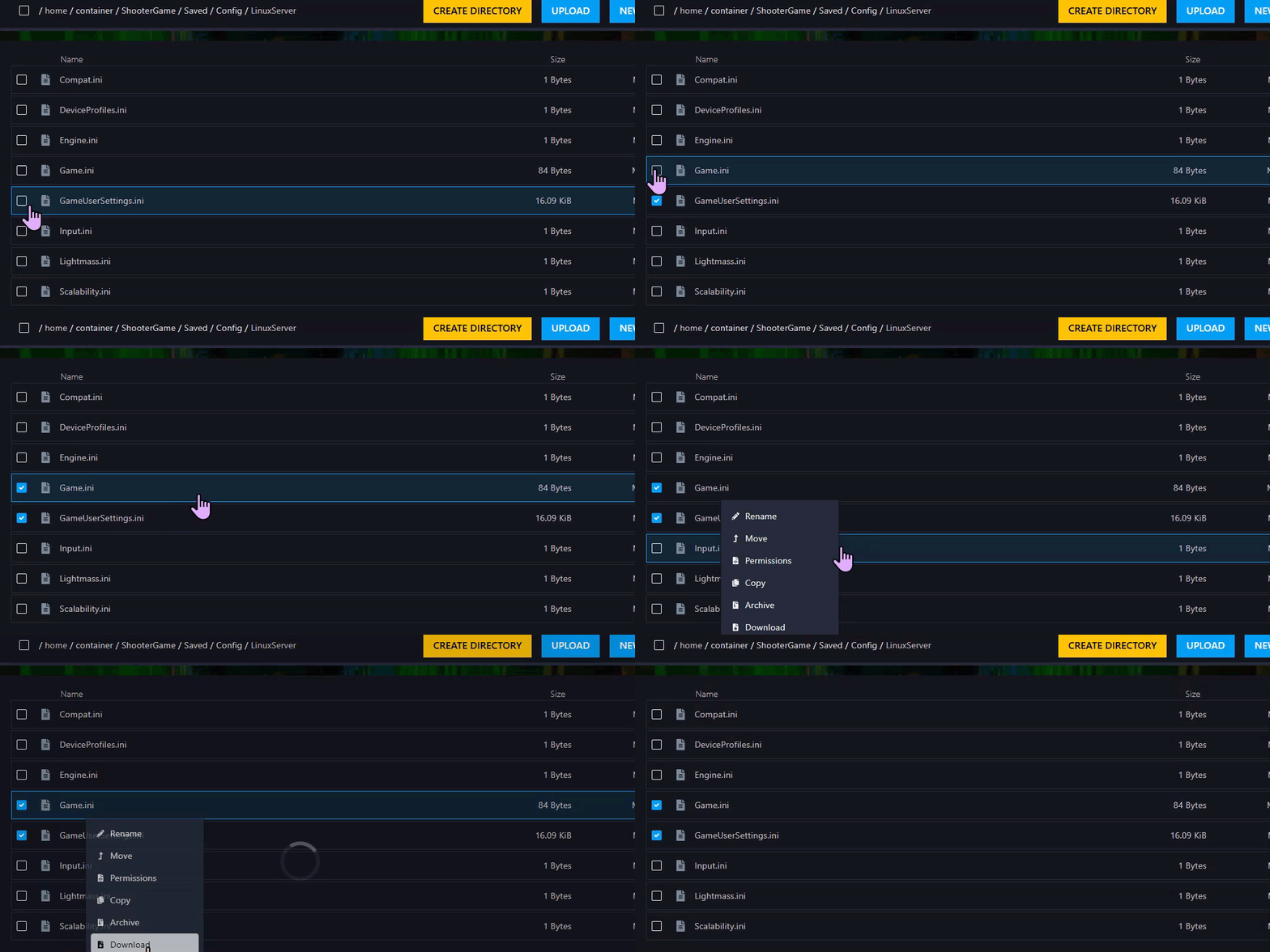
ShooterGame > Saved > Config > LinuxServer

Step 6) Download Game.ini and GameUserSettings.ini
In that folder, find:
Game.iniGameUserSettings.ini
Right-click each file and choose Download.
Step 7) Replace the local config files
Take the downloaded Game.ini and GameUserSettings.ini files and replace the ones in your local SavedArksLocal folder.

After that, launch the game and choose Host/Local to load the save in single player.