How setup custom loading messages on a Rust server
Rust Servers using Oxide (uMod) have access to a massive library of plugins that add features ranging from small quality-of-life improvements to complete gameplay overhauls. One of these is the Custom Loading Messages plugin, which allows server owners to display unique messages to players while they load in. Though simple, this plugin offers a surprising level of customization, letting you set the tone for your server right from the start.
Step 1) Download the Custom Loading Messages mod from the official uMod website HERE.

Step 2) Go to your console > click on your server and stop it using the "STOP" button.

Step 3) Once your server is stopped, go to "FILE MANAGER".
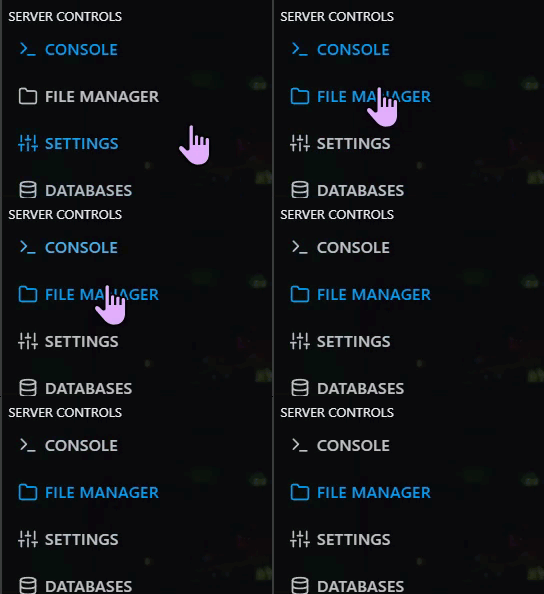
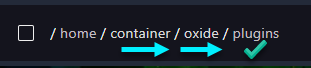
> Then navigate to home > container > oxide > plugins
Step 4) Click UPLOAD

> select the LoadingMessages.cs file you downloaded in Step 1
Step 5) Go back to the console and start the server again. The server will now generate the config files.
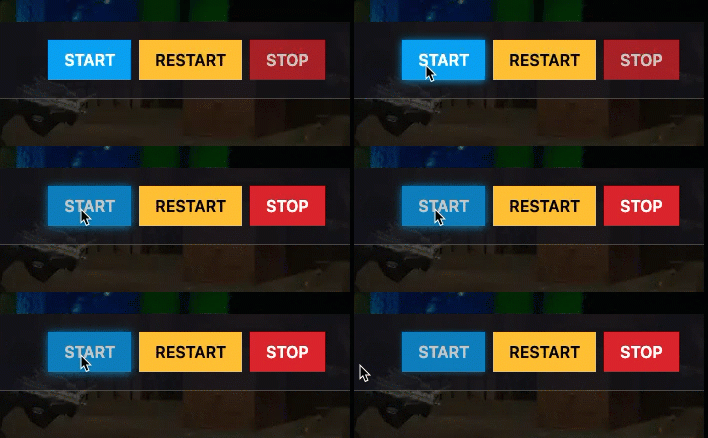
> Once the server is fully loaded, stop it again.
> Then go to "FILE MANAGER".
Step 6) Find this directory: /home/container/oxide/config

> open the generated .json configuration file.
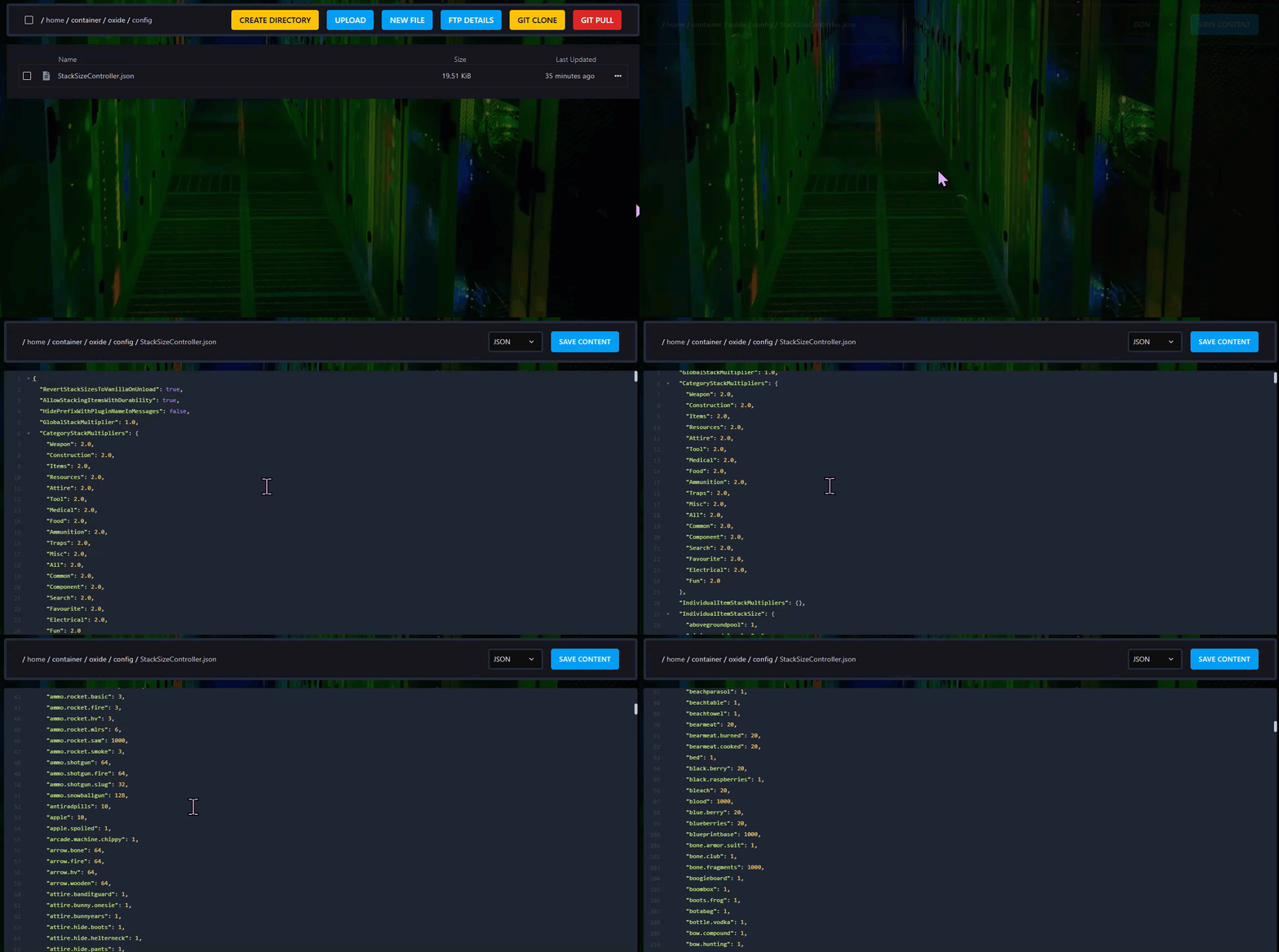
Add or edit your custom loading messages. Check the uMod documentation for formatting options, highlights, and color codes HERE.
Step 7) After you are done editing click "SAVE CONTENT"

Step 8) Go back to the console and start the server again.