How to setup bots on a Counter-Strike 2 server
Counter-Strike 2 is still in its early release stages, having recently transitioned from closed beta to public access. Some features from CS:GO are still being implemented, but adding bots is already supported and simple to configure. Bots can help maintain balanced gameplay when player activity drops and are also useful for training or testing maps.
Step 1) Go to your console > click on your server and stop it using the "STOP" button.

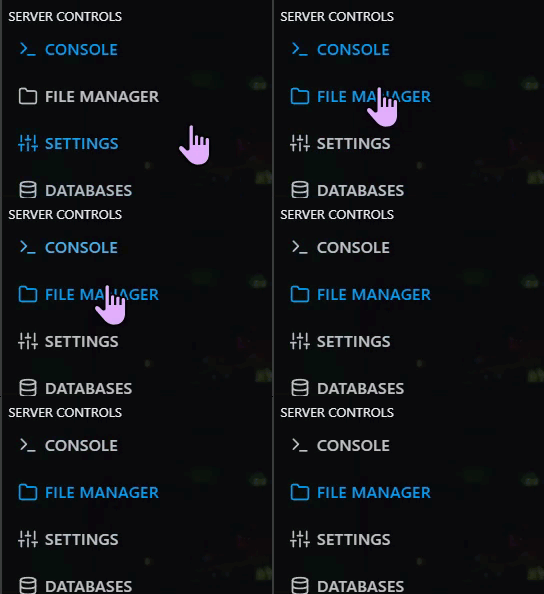
Step 2) Once your server is stopped, go to "FILE MANAGER".
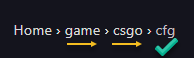
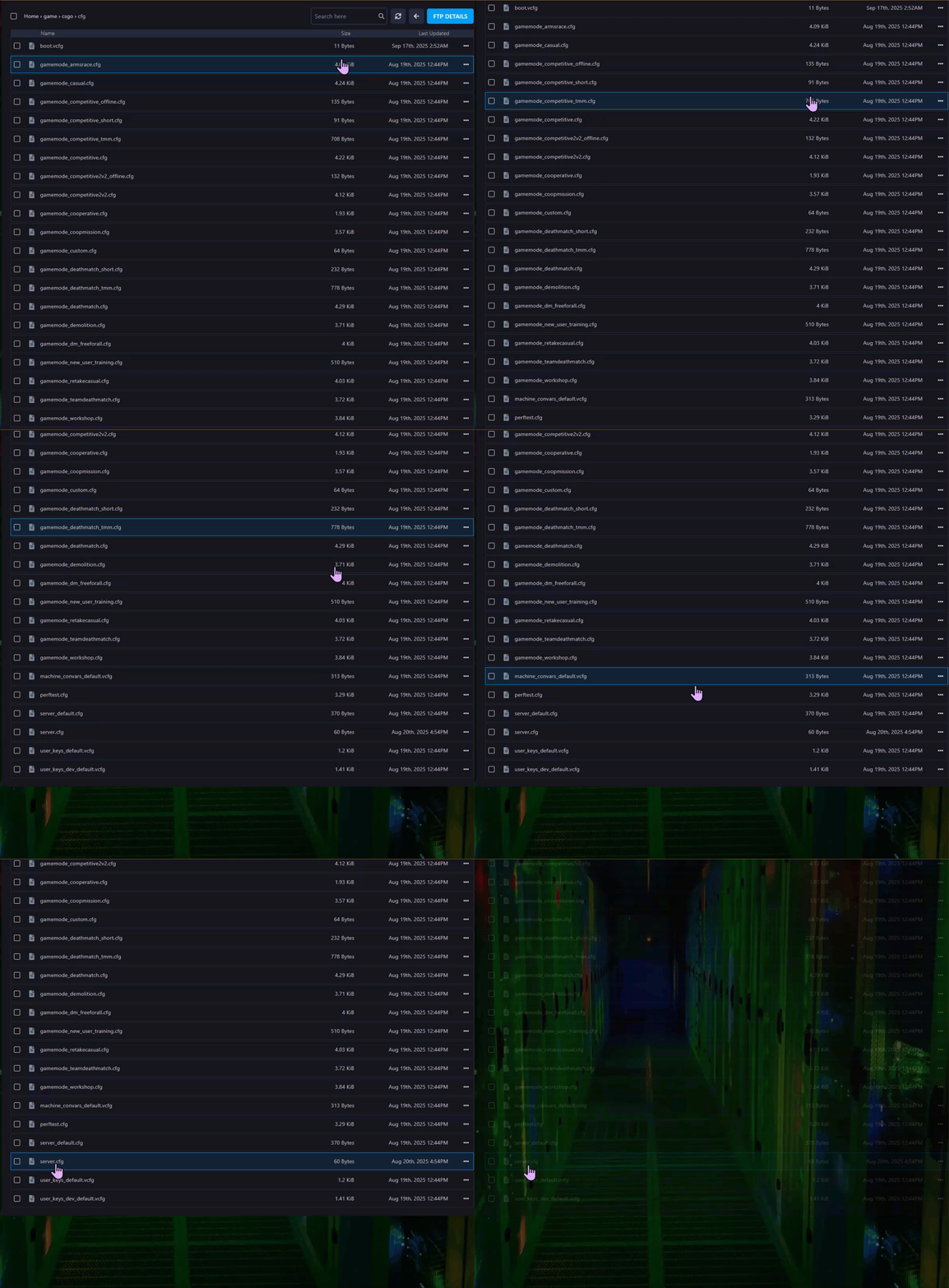
> Then navigate to Home > game > csgo > cfg and find a file named server.cfg after scrolling down.
> Open the server.cfg file.
> If there is no config file, create it via the New File button.

> Then name the file server.cfg and click CREATE FILE

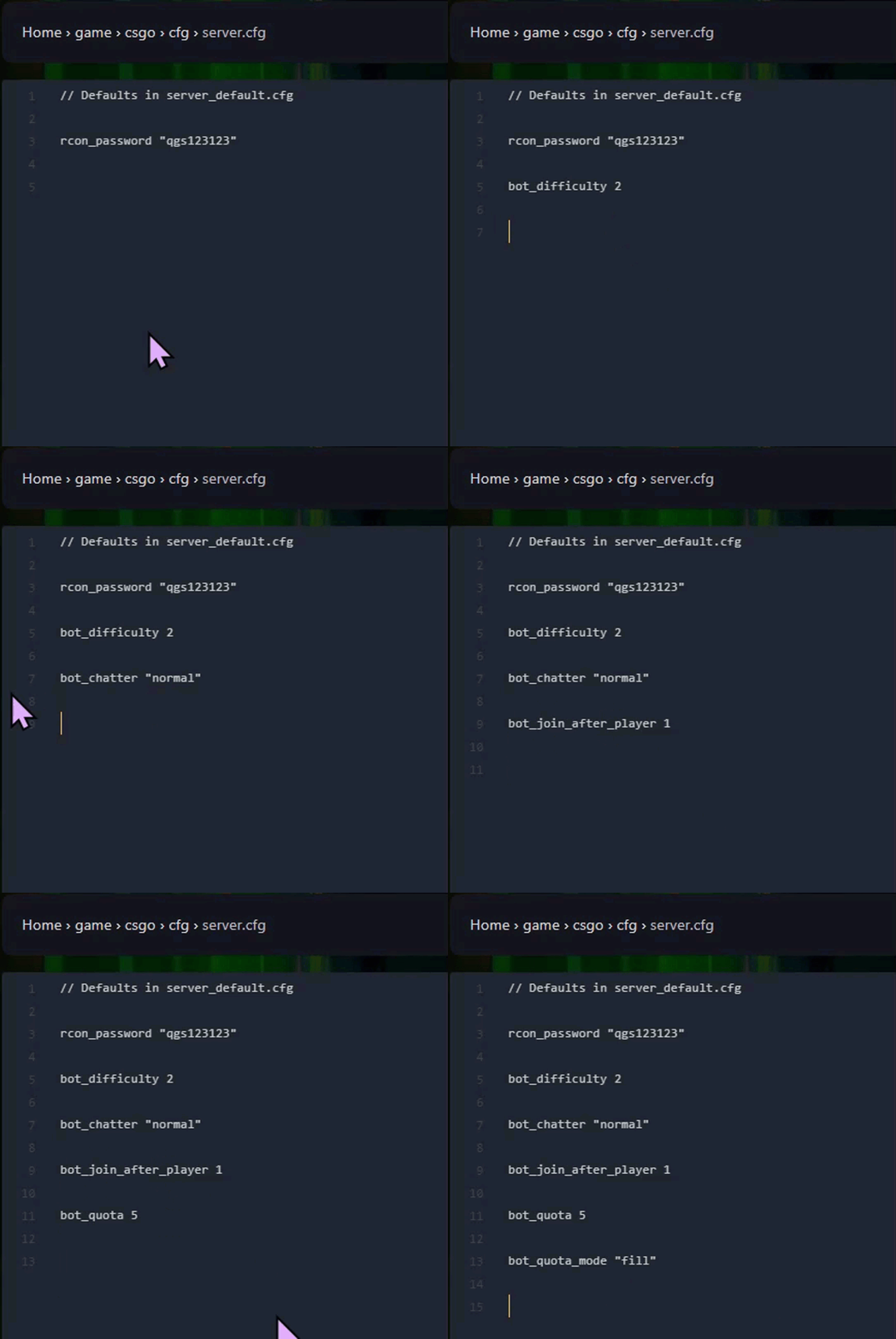
Step 3) On new rows in the file add the settings you need from the table below.
| Config Setting | Description | Example |
|---|---|---|
bot_difficulty [0-3] | Sets the bot difficulty level. 0 = Easy, 1 = Normal, 2 = Hard, 3 = Expert. | bot_difficulty 2 |
bot_chatter "[value]" | Controls how much bots communicate. Available values: "off", "radio", "minimal", "normal". | bot_chatter "normal" |
bot_join_after_player [0/1] | Controls whether bots wait until a player joins before entering the game. | bot_join_after_player 1 |
bot_quota [number] | Sets the maximum number of bots allowed on the server. | bot_quota 5 |
bot_quota_mode "[mode]" | Controls how bots are added. Available modes: "normal", "fill", "match". | bot_quota_mode "fill" |
Example bot configuration:
bot_difficulty 2
bot_chatter "normal"
bot_join_after_player 1
bot_quota 5
bot_quota_mode "fill"
Step 4) When you are done editing, press the "SAVE CONTENT" button on the right, above the text editor.

Step 5) Go back to the console and "START" the server again