What to do after a Counter-Strike 2 update breaks your plugins
Valve updates Counter-Strike 2 often. Your server downloads the update automatically when it starts, but your plugins do not update themselves. After a bigger update it is common that the server crashes on start, crashes when a player joins, or that some plugins stop working.
Why plugins break after an update
Server plugins hook into the game's internal functions. They find them using signatures and offsets — patterns that describe where a function is inside the game files. When Valve changes the game, these patterns can change too. A plugin with old signatures may:
- not load at all (
<ERROR>inmeta list, or a[EROR]line in the CounterStrikeSharp log), - call the wrong function and crash the server,
- load but not work correctly (menus, skins, voice, map changes).
The authors usually release a fixed version within hours or a few days.
Step 1) Check whether the update is the cause
Step 1) Check the date of the last CS2 update. In the File Manager go to game > bin > linuxsteamrt64 — the date of files like libengine2.so shows when the game was last updated.
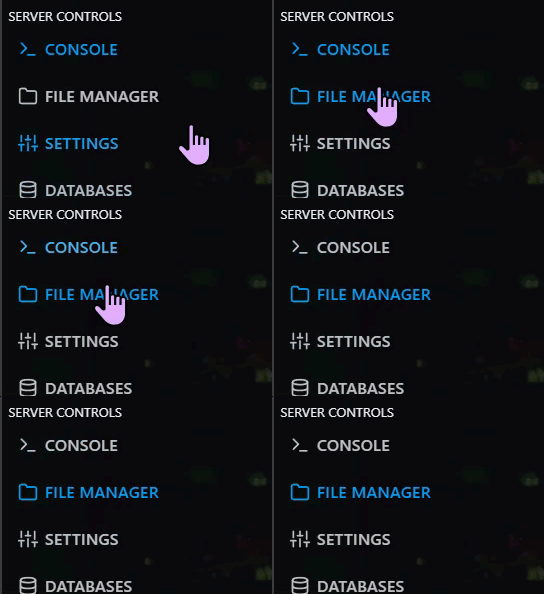
Step 2) If the problems started right after that date, the update is the most likely cause.
Step 2) Update the frameworks
MetaMod:Source, CounterStrikeSharp and SwiftlyS2 are installed and updated by our server image. They update automatically when the server starts, as soon as a new version is released. See Keeping Metamod, CounterStrikeSharp and SwiftlyS2 up to date.
Step 1) Restart your server so it can download the newest framework versions.

Step 2) Type css version or meta version in the console to see the installed versions.
If the framework authors have not released a fix yet, a restart will not help. Watch their GitHub releases page:
- CounterStrikeSharp: github.com/roflmuffin/CounterStrikeSharp/releases
- SwiftlyS2: github.com/swiftly-solution/swiftlys2/releases
- MetaMod:Source: mms.alliedmods.net
Step 3) Update your plugins
Plugins that you uploaded (Metamod plugins like MultiAddonManager, anticheats, and all CounterStrikeSharp / SwiftlyS2 plugins) must be updated by you.
Step 1) Open the GitHub (or download) page of every plugin and check if a new version was released after the update. The release notes often say something like "Rebuilt for the CS2 update" or "Updated signatures".
Step 2) Stop your server, upload the new files over the old ones and start the server again.
When you upload a new version, do not overwrite your config files (usually in cfg or configs) with the default config from the archive — you will lose your settings.
Step 4) If the server still crashes
Disable plugins that have not been updated yet until their authors release a fix. Start with plugins that read the game memory directly — anticheats, anti-wallhack, skin and emote plugins.
To find the exact plugin, follow How to find out which plugin crashed your Counter-Strike 2 server.