Why mm_extra_addons must be set in only one config file
A common mistake on Counter-Strike 2 servers with MultiAddonManager is to set mm_extra_addons in more than one config file. Every file overwrites the value of the previous one, so the server ends up with a different list of addons at different moments.
Symptoms
- The server hangs on the first map after a restart and only works after you type
map de_dust2(or another map) in the console. - When you type
mm_extra_addonsin the console, it shows fewer addons than you wrote inmultiaddonmanager.cfg. - Some addons (sounds, menus, models) work after a restart but disappear after a map change — or the other way around.
- Players reconnect several times while joining.
Why it happens
The config files are executed at different times, and the last one wins:
| When | File |
|---|---|
| When MultiAddonManager loads (server start) | cfg/multiaddonmanager/multiaddonmanager.cfg |
| On every map start | cfg/server.cfg |
| On every map start, after server.cfg | cfg/gamemode_competitive.cfg (or gamemode_casual.cfg, … depending on your game mode) |
| After the gamemode config | cfg/gamemode_competitive_server.cfg (if it exists) |
| Last, for the current map only | cfg/maps/de_dust2.cfg (if it exists) |
For example, if multiaddonmanager.cfg has 4 addons and server.cfg has 2, the server starts with 4 addons, then switches to 2 on the first map. The list changes while the map is loading, so the map waits for addons that are no longer wanted and the start hangs.
How to fix it
Step 1) Go to your console and stop your server using the "STOP" button.

Step 2) Go to "FILE MANAGER" and navigate to game > csgo > cfg.
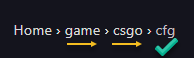
Step 3) Open server.cfg, every gamemode config file (gamemode_*.cfg) and every file in cfg > maps. Search for mm_extra_addons and mm_client_extra_addons (use CTRL + F) and delete those lines. Check the whole file — the same line can appear more than once, for example at the top and at the very end.
Step 4) Open cfg > multiaddonmanager > multiaddonmanager.cfg and put all addons you need in one line:
mm_extra_addons "3328582199,3461824328,3811667212"
Step 5) Save the files and start your server.
Step 6) Type mm_extra_addons in the console. It must show exactly the addons you set in Step 4.
Plugins that execute configs per map (for example "Map Configs" plugins with files in cfg > Map-Configs-…) can also contain mm_extra_addons. Check their files too.
More about the plugin: How to install and configure MultiAddonManager.