How to setup workshop maps and collections for your server
Hosting Workshop maps allows players to experience custom-made content created by the community. These maps bring new challenges, gameplay variations, and visual styles beyond the standard map pool. Adding Workshop maps helps server owners keep their servers engaging and unique, promoting creativity and collaboration within the community.
Make sure your server is linked to a valid Steam Game Server Login Token (GSLT) before running Workshop maps. Without it, the maps may fail to load properly. Article how to setup the server token HERE.
Setup workshop maps (Settings Menu)
Step 1) Choose a desired map from the Steam Workshop.
Step 2) Copy the Workshop ID from the URL in the browser’s address bar.

Step 3) Go to your console > click on your server and stop it using the "STOP" button.
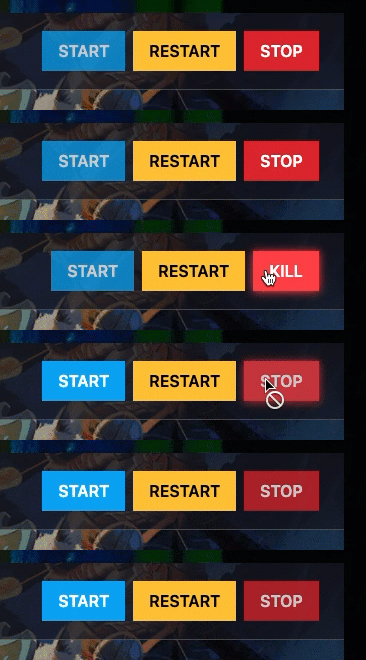
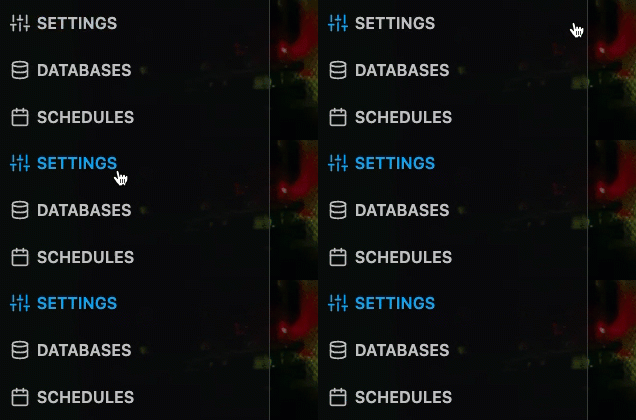
Step 4) Once your server is stopped, go to "SETTINGS".
Step 5) In the Variables section, locate the Workshop Map ID field
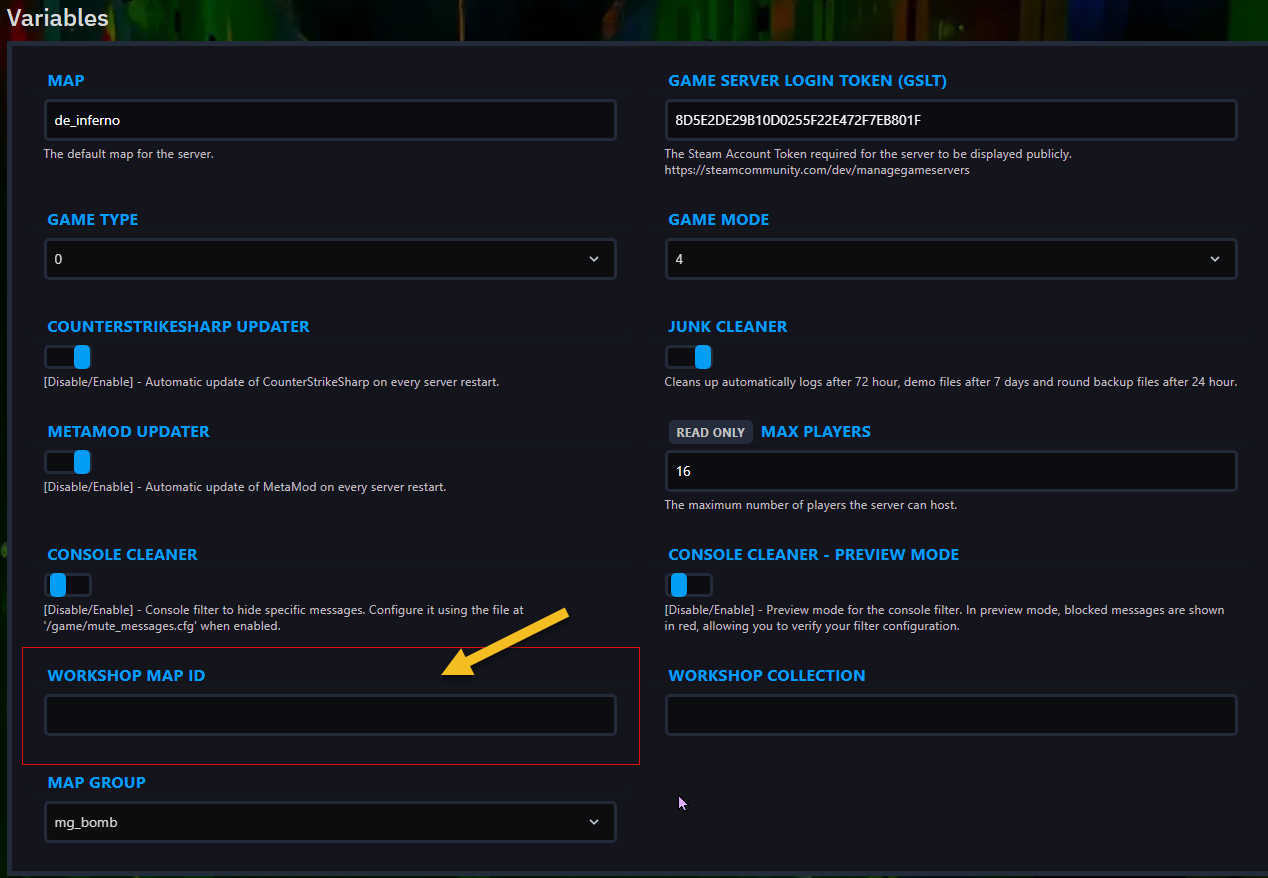
Step 6) Paste the Workshop ID you copied earlier in Step 2).

Step 7) Go back to the console and "START" the server again
Setup workshop maps from CONSOLE
Step 1) Select your desired map on the Steam Workshop.
Step 2) Copy the Workshop ID from the URL bar.
Step 3) Go to your console > click on your server and make sure your server is STARTED, if not - START it.
Step 4) Enter the following command and press Enter (replace [Workshop ID] with the ID copied earlier in Step 2)): host_workshop_map [Workshop ID]

Setup workshop map collections (Settings Menu)
Step 1) Go to the Steam Workshop and find a Map Collection you want to use.
Step 2) Copy the Workshop ID from the URL in the browser’s address bar.

Step 3) Go to your console > click on your server and stop it using the "STOP" button.
Step 4) Once your server is stopped, go to "SETTINGS".
Step 5) In the Variables section, locate the Workshop Collection field.
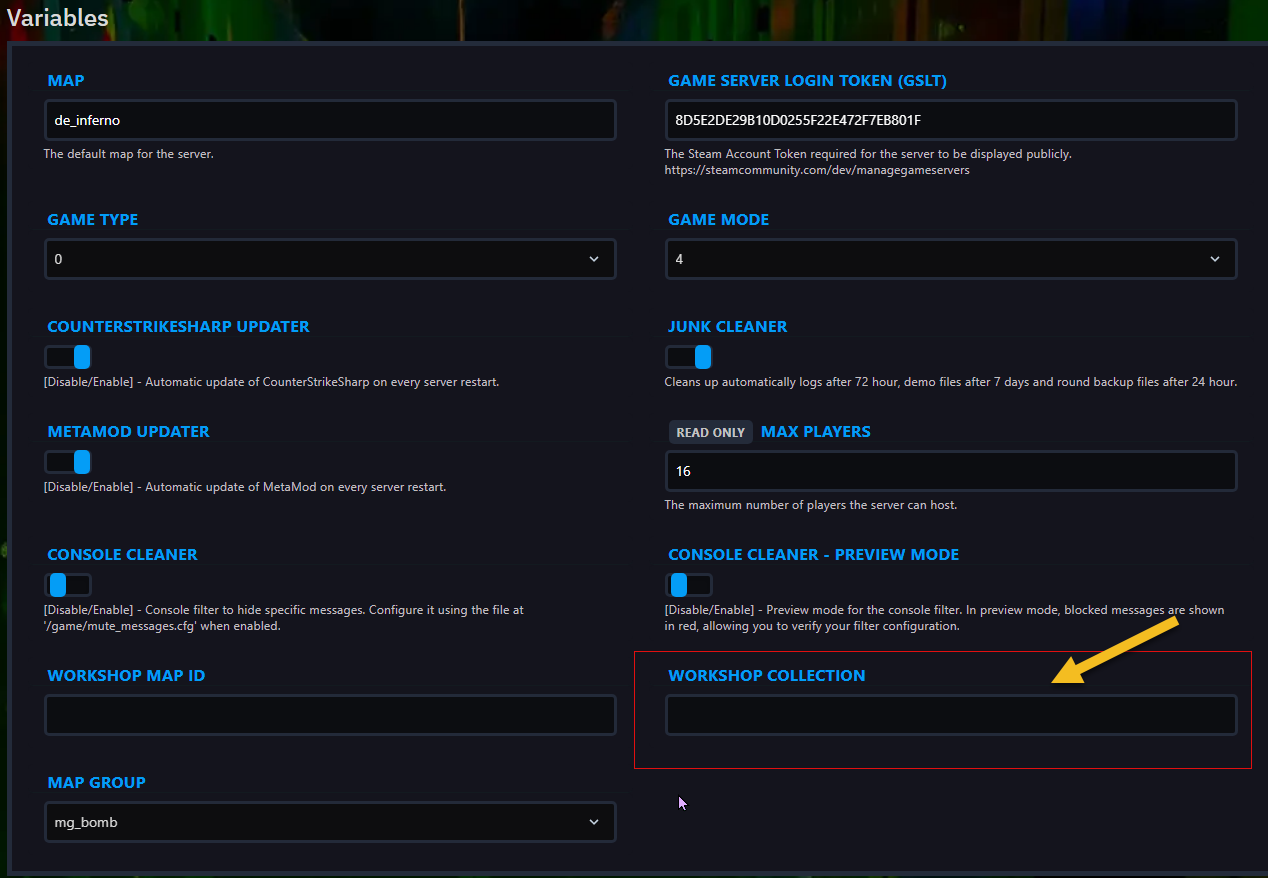
Step 6) Paste the ID you copied earlier in Step 2).

Step 7) Go back to the console and "START" the server again
Setup workshop map collections from CONSOLE
Step 1) Go to the Steam Workshop and find a Map Collection you want to use.
Step 2) Copy the Collection ID from your browser’s address bar.
Step 3) Go to your console > click on your server and make sure your server is STARTED, if not - START it.
Step 4) Run the following command (replace [Workshop ID] with the ID copied earlier in Step 2 host_workshop_collection [Workshop ID]