How to find out which plugin crashed your Counter-Strike 2 server
When a Counter-Strike 2 server crashes and restarts by itself, the cause is almost always a plugin, not the game. In this guide we show you where to look so you can find the plugin that crashed it.
When the server restarts, the console in the panel is cleared. The most useful error text is only visible right after the crash, so check the console before you press anything else.
Step 1) Read the console right after the crash
Step 1) Go to your console and click on your server. Scroll up in the console to the last lines before the server stopped.
Look for these lines:
| What you see | What it means |
|---|---|
Unhandled exception. followed by lines starting with at PluginName.… | A CounterStrikeSharp (C#) plugin crashed. The plugin name is in the at … lines. |
Segmentation fault / core dumped | A native crash. Continue with Step 2 to find the module. |
Minidump written to '…/swiftlys2/dumps/crashreport/…' | SwiftlyS2 saved a crash report. Continue with Step 2. |
Copy the whole block of text. If you contact our support, send it to us — it saves a lot of time.
Step 2) Check the SwiftlyS2 crash reports
If SwiftlyS2 is installed, it writes a report for every crash, even when the crash is caused by another plugin.
Step 1) Go to "FILE MANAGER".
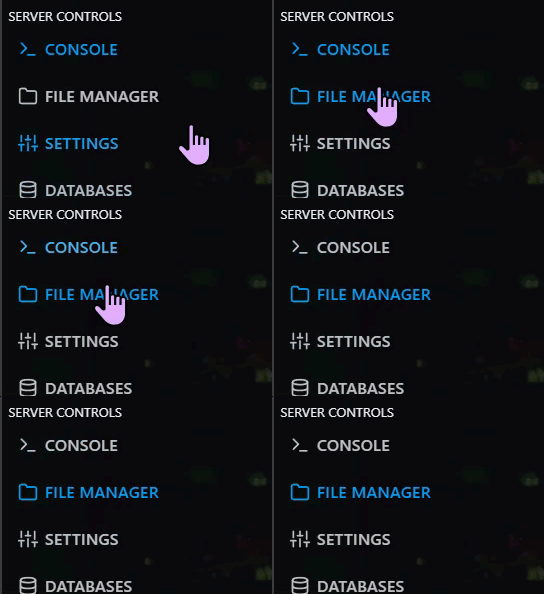
Step 2) Navigate to game > csgo > addons > swiftlys2 > dumps > crashreport. Every folder is one crash. Open the newest folder and then the file crashinfo.json.
Step 3) Find "threads", then the first "frames" list. Look at the "module" value of the first few frames:
| Module | Who crashed |
|---|---|
counterstrikesharp.so, libcoreclr.so, libclrjit.so | A CounterStrikeSharp (C#) plugin |
swiftlys2.so | SwiftlyS2 or one of its plugins |
The name of a Metamod plugin, e.g. cs2ac.so, multiaddonmanager.so | That Metamod plugin |
Only libengine2.so, libserver.so, libc.so.6 | Usually the game itself, or a plugin that broke after a CS2 update |
If the crash folder is empty, the crash was so hard that no report could be written. In that case the console from Step 1 is your only source.
Step 3) Read the CounterStrikeSharp logs
Step 1) In the File Manager navigate to game > csgo > addons > counterstrikesharp > logs.
Step 2) Open log-allYYYYMMDD.txt for the day of the crash. The line CounterStrikeSharp is starting up... marks every start of the server, so the lines just before it show what happened right before the crash.
Step 3) Search for lines with [EROR]. Every plugin also has its own log file in the same folder (for example log-K4-System20261023.txt).
Step 4) Check which plugins are loaded
Type these commands in the console:
| Command | Shows |
|---|---|
meta list | All Metamod plugins and their versions |
css_plugins list | All CounterStrikeSharp plugins |
sw plugins list | All SwiftlyS2 plugins |
A plugin marked with <ERROR> or missing from the list did not load correctly.
Step 5) Find the plugin by disabling plugins in halves
If you still don't know which plugin is to blame, disable plugins until the crash stops:
Step 1) Stop your server.

Step 2) Move half of the folders from game > csgo > addons > counterstrikesharp > plugins into plugins > disabled (create the folder if it doesn't exist).
Step 3) Start the server and play until the crash would normally happen.
Step 4) If the crash is gone, the plugin is among the disabled ones. If not, it is among the active ones. Repeat with the remaining half until only one plugin is left.
Metamod plugins (for example anticheats or MultiAddonManager) are disabled by moving their .vdf file out of game > csgo > addons > metamod. See How to upload Metamod plugins.
Free disk space after crashes
After a crash the server may leave a large file named core or core.123 in game > bin > linuxsteamrt64. These are memory dumps of 3-4 GB each and you can safely delete them.